Your agents run on the machine where you start them. That's fine until the work outgrows it: the laptop has to close, the desktop is busy, or a job wants a clean box. Overdeck Anywhere links your machines, so one dashboard shows every machine's conversations, controls them, and moves them.
Each machine still runs its own Overdeck and keeps its own conversations, agents and credentials. A link lets this machine's dashboard reach the other one and control what runs there.
Link a machine with one command
On the machine you want to add, run:
$ npx @overdeck/core connectIt installs the Overdeck server as a service that survives logout and reboot, starts it, and prints one link. Paste that link into Settings → Anywhere → Machines → Link a machine on the machine you sit at. The two machines prove their keys to each other, and within a few seconds the link shows Online on both sides.
Every machine's agents, one list
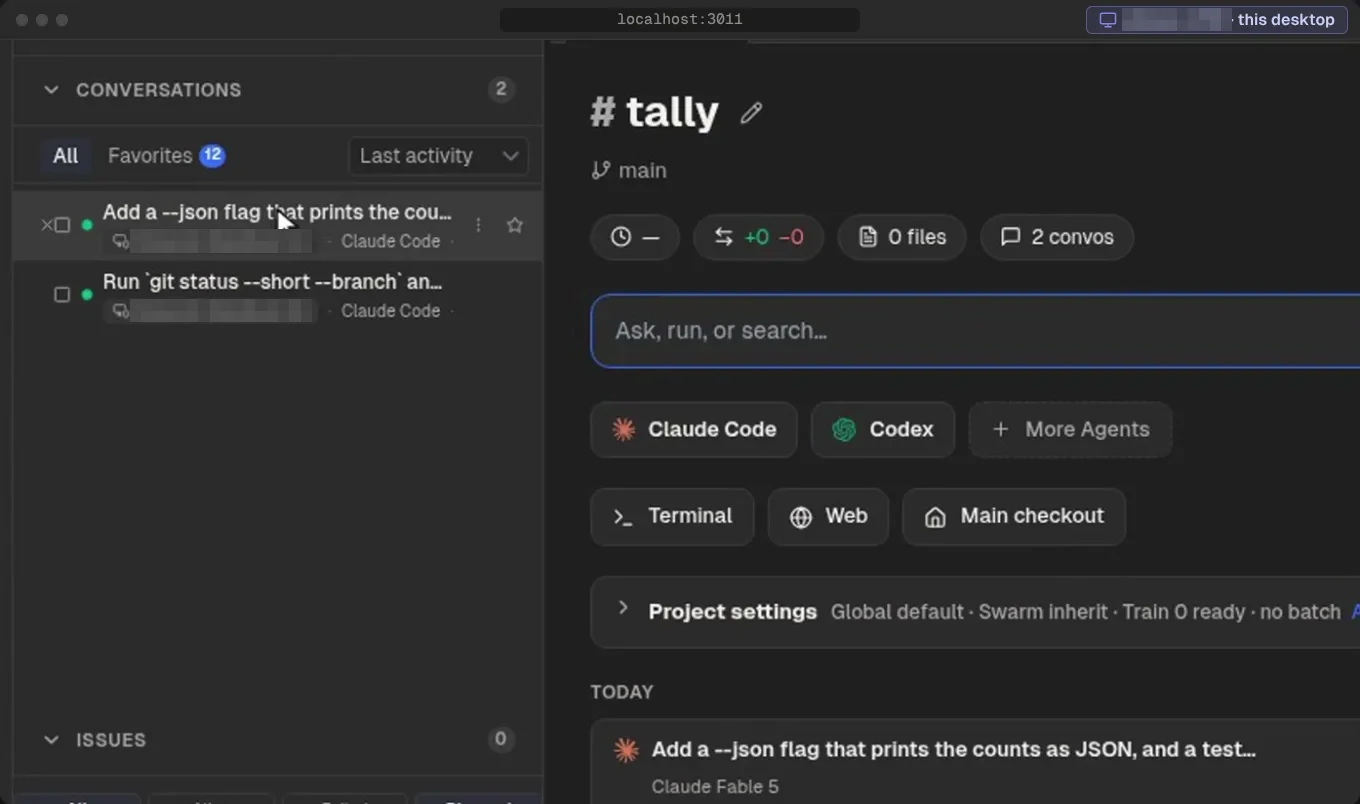
Once two machines are linked, each lists the other's conversations next to its own, with a chip that names the machine running them. Open one and its transcript streams live. You can answer a question, send a message or open its terminal as if it ran right here.
Start work on any machine
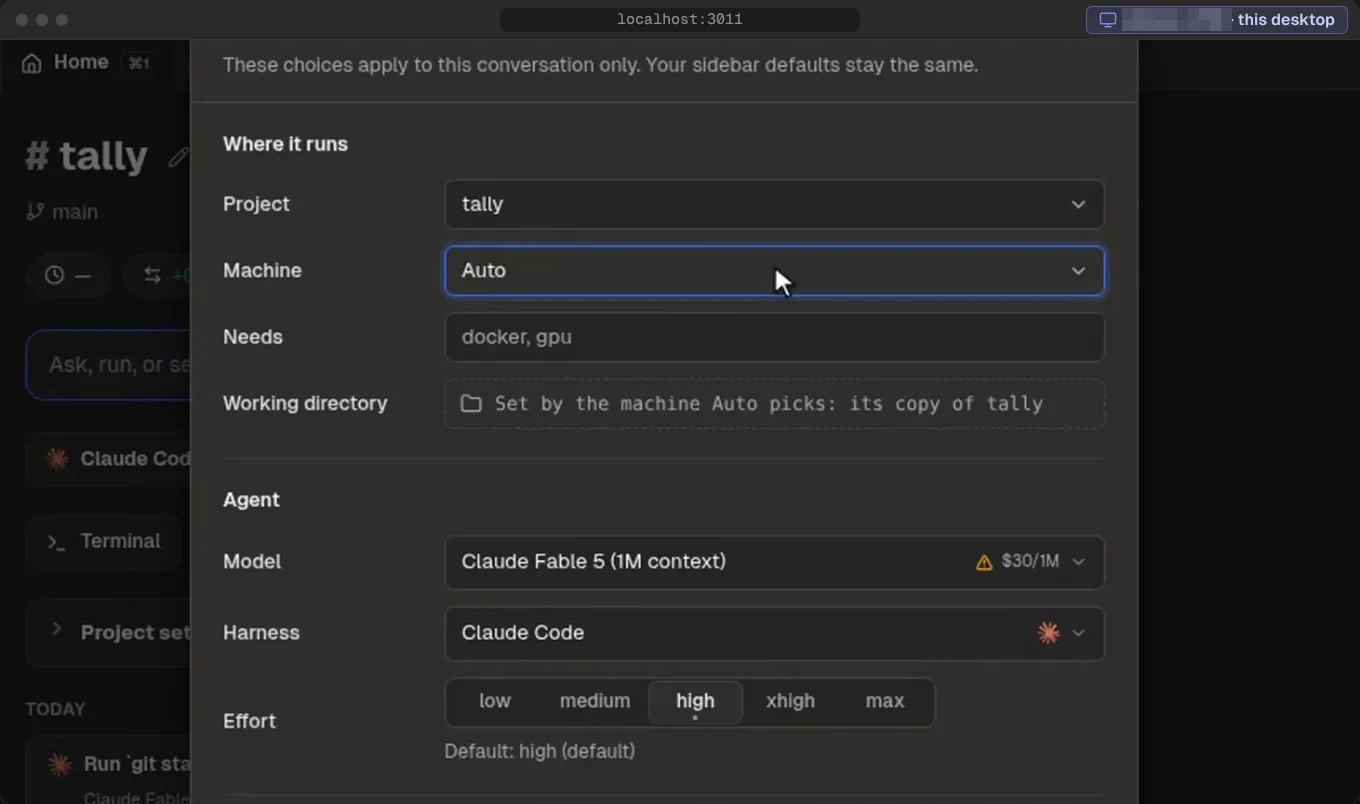
The new-conversation dialog has a Machine field. Choose This machine, any linked machine that is online, Fly (new VM), or Auto. Auto skips machines that are offline or saturated, then picks the one with the lowest CPU pressure, the most free memory and the fewest working agents. It tells you why it picked that machine.
Move a running conversation with Pull here
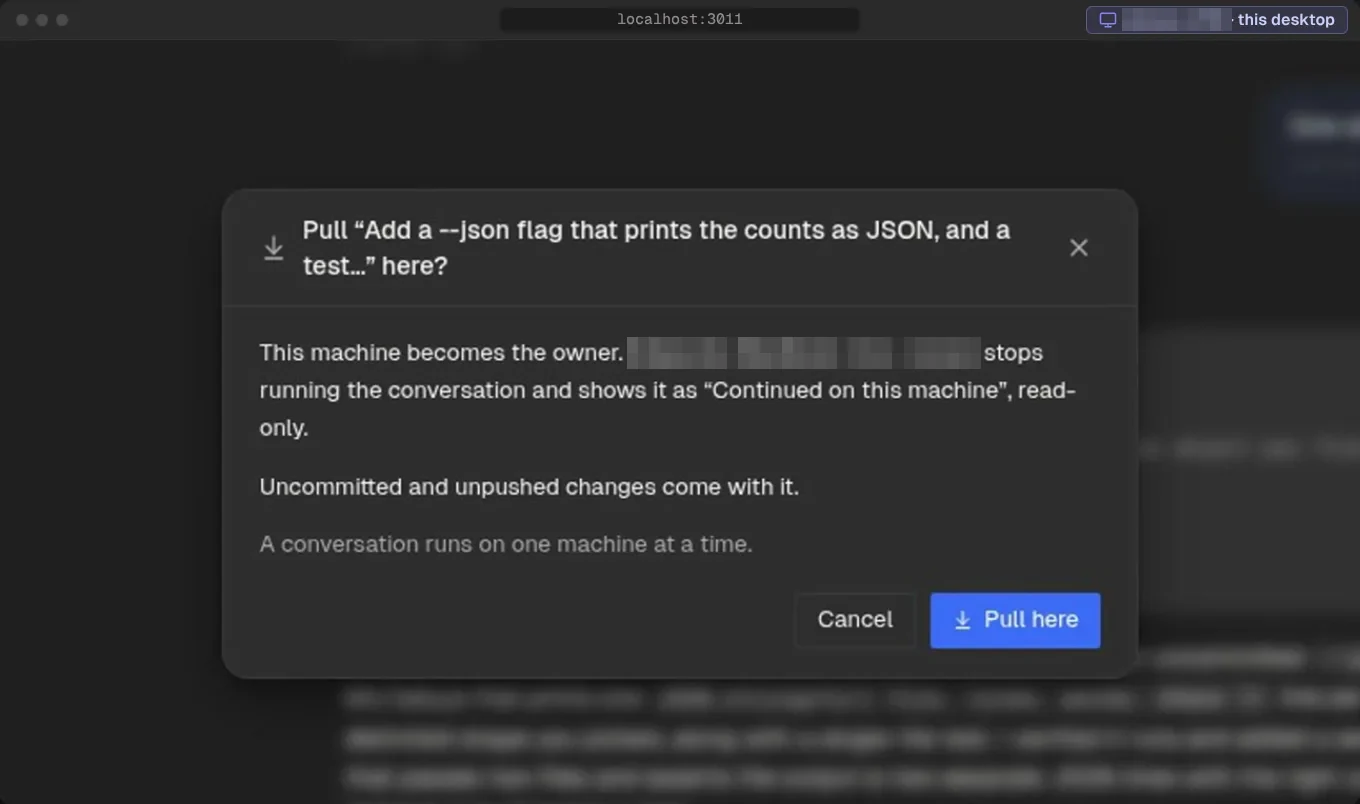
Pull here makes this machine the owner of a conversation. A conversation runs on one machine at a time, so the pull goes in four steps:
- The old machine settles the conversation, with its uncommitted and unpushed code changes, and stops its agent.
- The conversation crosses the encrypted channel.
- This machine continues it in its own checkout and resumes the agent, with the whole transcript and the same title.
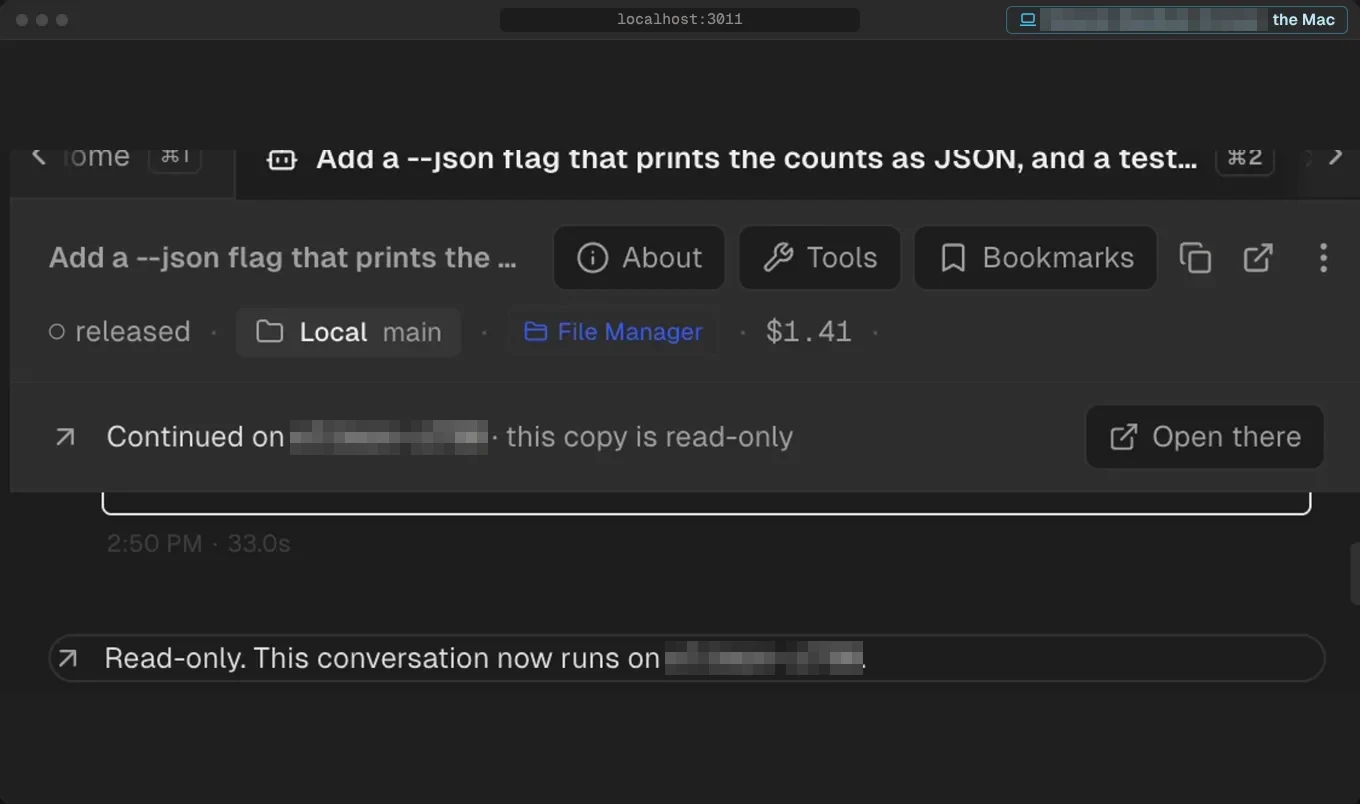
- The old copy shows "Continued on" this machine and turns read-only.
If this machine can't adopt the conversation, the old machine takes it back and resumes it, so nothing is lost. Pull here works for Claude Code and Codex conversations. To send one back, press Pull here on the other machine.
Burst to the cloud with Fly.io
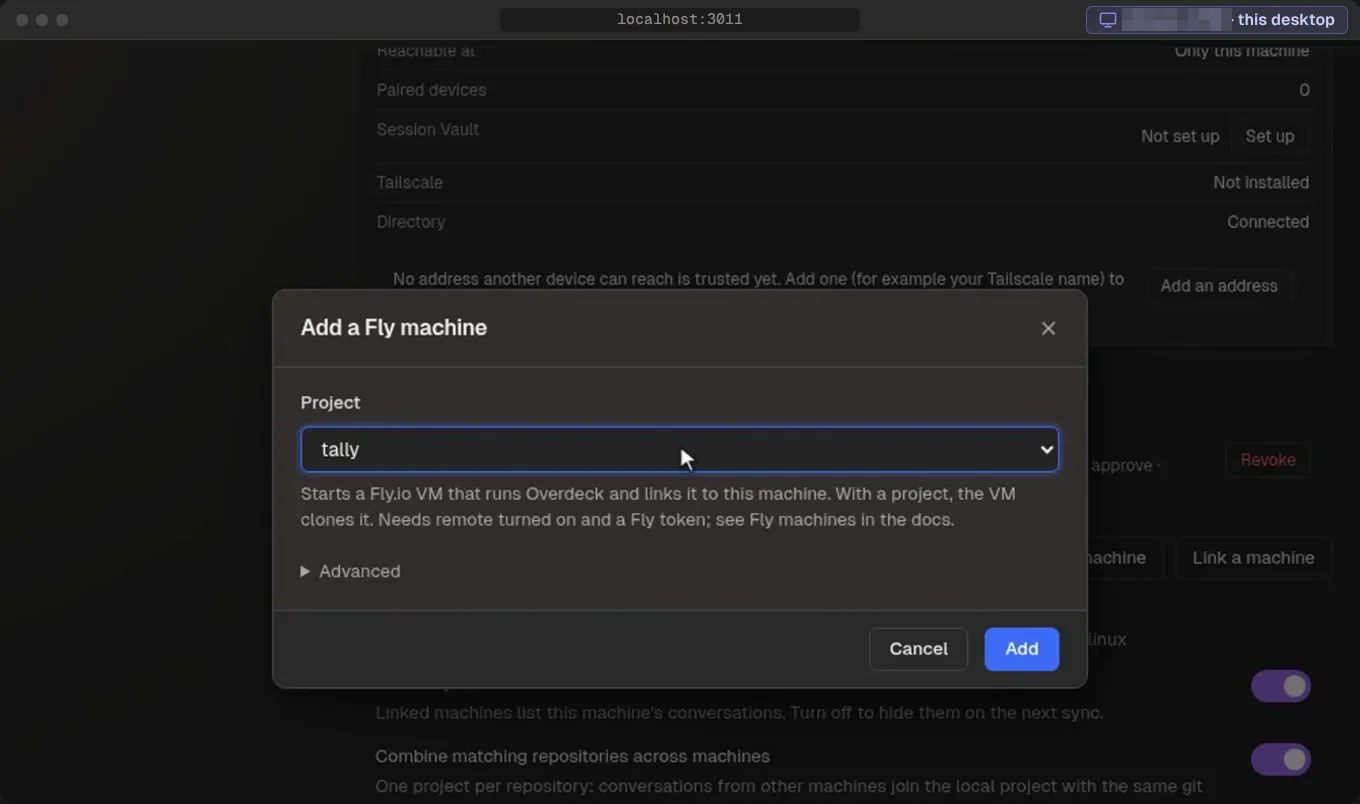
When you need another machine and don't have one, Add a Fly machine starts a Fly.io VM on your own Fly account, and you pay Fly directly. In a few minutes it copies your Claude, Codex and GitHub credentials to the VM (no SSH key ever goes there), starts Overdeck, links the VM and clones your project. You can also pick Fly (new VM) in the Machine field to start a conversation on a fresh VM.
A Fly machine is destroyed, never stopped, because a stopped Fly VM loses its disk. By default that happens after no conversation on it has been active for 30 minutes. Its conversations go with it, so pull the one you want to keep home first.
How it connects
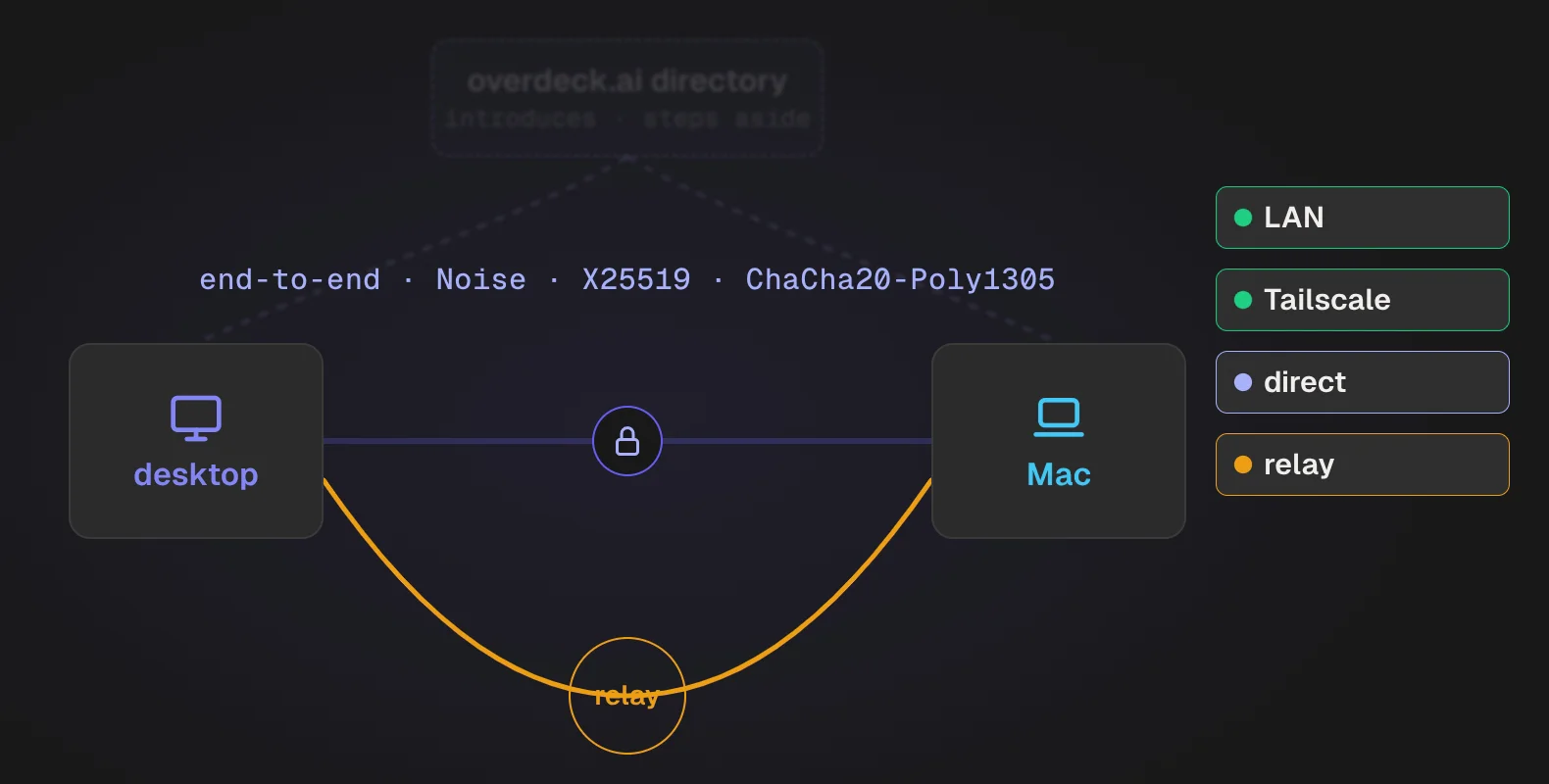
Every link is end-to-end encrypted on every route. The channel is a Noise protocol session (X25519, ChaCha20-Poly1305) between the two machines' keys, and every request, event stream and terminal that crosses a link travels inside it.
A link keeps a list of ways to reach the other machine and uses the best one that answers: your local network first, then Tailscale, then an SSH forward. When none of these works, the optional overdeck.ai directory introduces your machines to each other for a direct connection, then steps aside. It never carries your conversations and never vouches for a key. When no direct path exists, the relay connects the two machines, still end-to-end encrypted.
What it costs
Linking your own machines needs no account and no subscription. That covers LAN, Tailscale, SSH and Fly machines. Everything Anywhere does on your own machines is free and open source.
The directory and the relay are optional hosted services on overdeck.ai. Accounts there are invite-only for now. Plans and pricing has the details.
Get started
Overdeck Anywhere shipped in v0.73.0, and v0.74.0 polishes it. To try Overdeck, run npx @overdeck/core. It starts Overdeck and opens the dashboard in your browser. If you already use Overdeck, upgrade with npm install -g @overdeck/core@latest, then run pan install.
Then link your first machine:
- Linked machines covers linking, routes, Pull here, Fly machines and Auto.
- pan machines is the command reference, including
pan connect. - Overdeck Anywhere lists everything else in Anywhere, including Tailscale setup, the phone app and push notifications.